“Windows was unable to complete the format” usually means one of four things: the drive or SD card is write-protected, something still has it open, you asked for FAT32 on a drive bigger than 32 GB, or the partition table is damaged. The fix that clears most cases is to wipe the drive’s partition info with DiskPart (list disk, select disk N, clean) and then create a fresh volume in Disk Management. If it still fails after that, and fails on a second computer too, the card or stick itself is likely dying.
Everything below erases the drive. Copy off anything you still need before you start, if Windows will still let you read it.
What other people tried, and what happened
A microSD card that refused every format
A Microsoft Q&A thread from a phone owner reads like a checklist of this error: File Explorer said “Windows was unable to complete the format,” Disk Management said “The format did not complete successfully,” and a recovery tool stalled with a cyclic redundancy check error. Volunteers suggested DiskPart, uninstalling the drive in Device Manager and restarting, and checking the lock switch. The owner reported that DiskPart’s clean “succeeded” but files were still there. One reply summed it up: if no computer can format it, “it is likely corrupt or damaged.” That matches what you see with failing flash memory: it accepts commands but can’t actually write.
An SD card that wouldn’t switch from NTFS to exFAT
On Tom’s Guide forums, someone hit the error converting a karaoke SD card to exFAT. The replies covered the usual suspects: check the card’s physical write-protect switch, try another computer, use the SD Association’s own formatter, or run format from Command Prompt. The poster never said which one worked, but every suggestion appears in the fixes below.
“Where’s the FAT32 option?”
A popular Microsoft Q&A question came from someone who couldn’t find FAT32 anywhere for a flash drive. Several answers explained that File Explorer and Disk Management hide FAT32 on volumes larger than 32 GB, and that Command Prompt complains the volume is too big. In a similar thread about a 250 GB stick, the accepted answer was to clean the disk, initialise it as GPT, create a 32,000 MB volume and format that as FAT32. If you don’t strictly need FAT32, pick exFAT and skip all of this.
Why Windows can’t complete the format
Start with the cause that matches your situation. The order below runs from most common and easiest to rule out to least.
| Sign | Likely cause | Fix |
|---|---|---|
| SD card in an adapter or reader, or the drive won’t accept any changes | Write protection (lock switch or read-only attribute) | Fix 1 |
| Error appears instantly, or Windows says the drive is in use | A program or Explorer window has files open | Fix 2 |
| Only fails when you choose FAT32 | Volume is larger than 32 GB | Fix 3 |
| Drive shows odd sizes, RAW, or several small partitions (for example after writing a Linux image to it) | Damaged or unusual partition layout | Fix 4 |
| Fails everywhere, CRC errors, files reappear after wiping | Failing flash memory | Fix 6 |
Fix 1: Remove write protection
Check the hardware first. Full-size SD cards and microSD adapters have a small lock slider on the side; slide it away from Lock, reinsert the card and try again. Both the Tom’s Guide moderator and a Microsoft MVP in the threads above asked about this first, for good reason.
If there’s no switch, or it’s already off Lock, Windows itself may have the disk flagged read-only. Clear it with DiskPart, using the attributes disk command Microsoft documents:
- Right-click Start, choose Terminal (Admin) or Command Prompt (Admin), and type diskpart.
- Type list disk and find your drive by its size.
- Type select disk N, replacing N with that number.
- Type attributes disk to display the disk’s current attributes, including whether it’s read-only.
- Type attributes disk clear readonly, then try formatting again.
If the read-only flag keeps coming back, suspect the hardware and jump to Fix 6.
Fix 2: Close whatever is using the drive
Close File Explorer windows showing the drive, photo importers, antivirus scans and any app that opened a file from it. Then try again. If you’d rather force it, the Command Prompt format command has a /X switch that dismounts the volume first:
format E: /FS:exFAT /Q /X
Swap E: for your drive letter and double-check it. Formatting the wrong letter wipes that drive instead.
Fix 3: Pick exFAT or NTFS instead of FAT32
If the error only shows up with FAT32 on a big drive, the file system is the problem, not the hardware. Choose exFAT for USB sticks and SD cards you’ll move between Windows and other devices, or NTFS for a drive that only ever plugs into Windows PCs.
Need FAT32 for an older console, car stereo or 3D printer? Microsoft Q&A volunteers point out that Windows’ graphical tools cap FAT32 at 32 GB, so create a partition of 32 GB or less and format that. As of October 2026, Microsoft has also raised the command-line FAT32 limit from 32 GB to 2 TB in Windows 11 Insider Preview Build 26300.8170 (Dev Channel). The format window in File Explorer still keeps the old limit, and most people won’t have that build.
Fix 4: Wipe the partition table with DiskPart, then format in Disk Management
This is the fix that works most often, especially for cards and sticks that once held a bootable or Linux image. DiskPart’s clean command removes all partitioning information, so Windows sees the drive as blank.
Warning: clean erases the entire selected disk. Picking your internal drive by mistake would wipe Windows. Compare sizes carefully.
- Open diskpart as administrator (see Fix 1).
- Type list disk and note the number of the USB drive or SD card.
- Type select disk N with that number.
- Type clean and wait for the success message.
- Type exit.
- Open Disk Management: search Start for Create and format hard disk partitions and run it as administrator.
- If Windows asks you to initialise the disk, accept. Microsoft’s Disk Management guide notes that some USB drives skip this step and go straight to formatting.
- Right-click the Unallocated space, choose New Simple Volume, keep the full size, assign a letter, pick the file system and click Finish.
Want to zero every sector instead? clean all does exactly that, according to Microsoft. It takes much longer on large drives, and a Microsoft MVP in the SD card thread suggested it as a last try before replacing the card.
Fix 5: Use the SD Association’s formatter for SD cards
For SD, SDHC, SDXC and SDUC cards, the SD Memory Card Formatter from the SD Association is free and formats to the official SD specification. The SDA says operating system formatters can work but may not be optimised for SD cards. As of October 2026 it’s version 5.0.4 for Windows and supports Windows 10 22H2 and Windows 11 22H2 through 24H2. It doesn’t support cards encrypted with BitLocker To Go, so open and decrypt those in Windows first.
Fix 6: Check whether the drive is simply failing
Flash memory wears out, and cheap or counterfeit cards fail early. Signs you’re dealing with dead hardware rather than a Windows problem:
- DiskPart says clean succeeded, yet old files are still there when you reconnect.
- Copying or scanning fails with a cyclic redundancy check error.
- The drive reverts to read-only after you clear the attribute.
- It fails the same way on another PC or a Mac.
One more thing to try before giving up: in Device Manager, under Disk drives, right-click the drive, choose Uninstall device, unplug it, restart and plug it back in. That was another suggestion in the Microsoft Q&A thread, and it rules out a stuck driver. If none of this works, replace the drive, and check whether it’s still under the maker’s warranty.
Quick format or full format?
Leave Quick Format ticked for a healthy drive. Microsoft’s format documentation says quick format skips the bad-sector scan and should only be used on drives in good condition. If a quick format fails, try once more with it unticked (or without /Q in Command Prompt): a full format checks the whole surface and can be slow on big drives.
Frequently asked questions
Does “Windows was unable to complete the format” mean my USB drive is dead?
Not usually. Most cases come from write protection, a FAT32 size limit or a damaged partition table, all fixable. If DiskPart clean and a format fail on two different computers, the drive is likely failing.
Can I recover files from a drive that won’t format?
Possibly, if Windows can still read it. Copy files off before running DiskPart clean, because clean removes the partition information and a full format overwrites data.
Why doesn’t Windows offer FAT32 for my 64 GB card?
File Explorer and Disk Management only offer FAT32 on volumes up to 32 GB. Use exFAT, or create a 32 GB partition if a device insists on FAT32.
Is DiskPart safe to use?
Yes, as long as you select the right disk. The clean command wipes whichever disk is selected, so check the disk number against the size shown in list disk before you type it.
What does “the disk is write protected” mean when formatting?
Either the card’s lock switch is on or the disk has a read-only attribute. Slide the switch off Lock, or run attributes disk clear readonly in DiskPart.
Sources
- Microsoft Learn: DiskPart clean
- Microsoft Learn: DiskPart attributes disk
- Microsoft Learn: format command
- Microsoft Learn: Initialize new disks in Disk Management
- Windows Insider Blog: Build 26300.8170
- SD Association: SD Memory Card Formatter
- Microsoft Q&A: Unable to format SD card
- Microsoft Q&A: Formatting a USB flash drive to FAT32
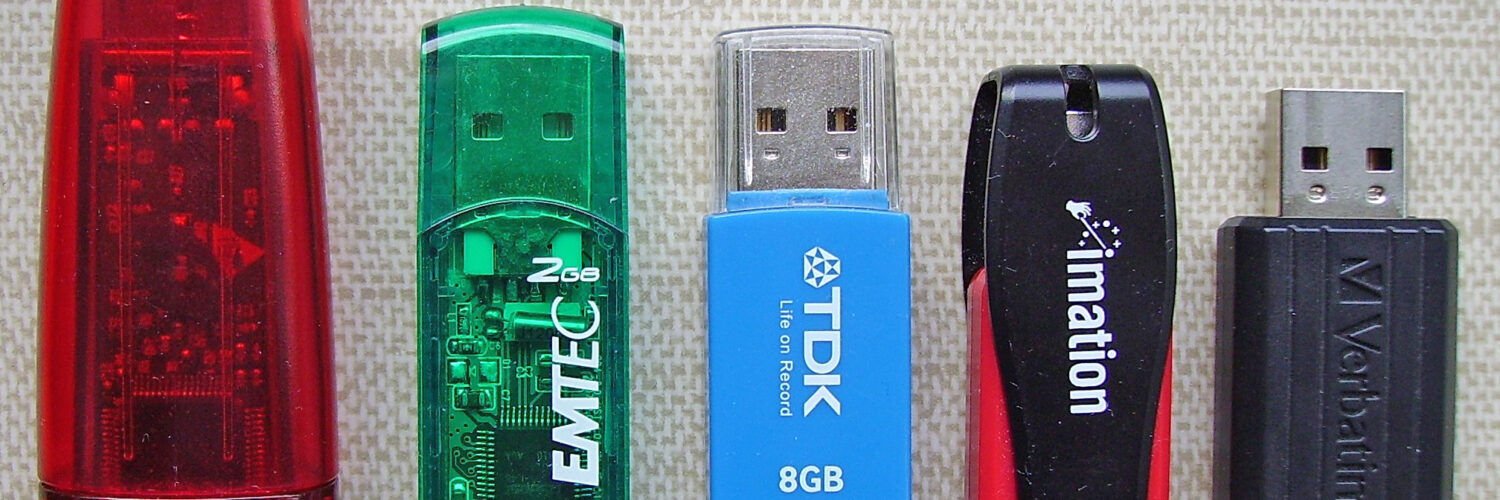
Featured image: Cjp24 / Wikimedia Commons; levels adjusted by Soerfm. CC BY-SA 3.0 https://creativecommons.org/licenses/by-sa/3.0/