
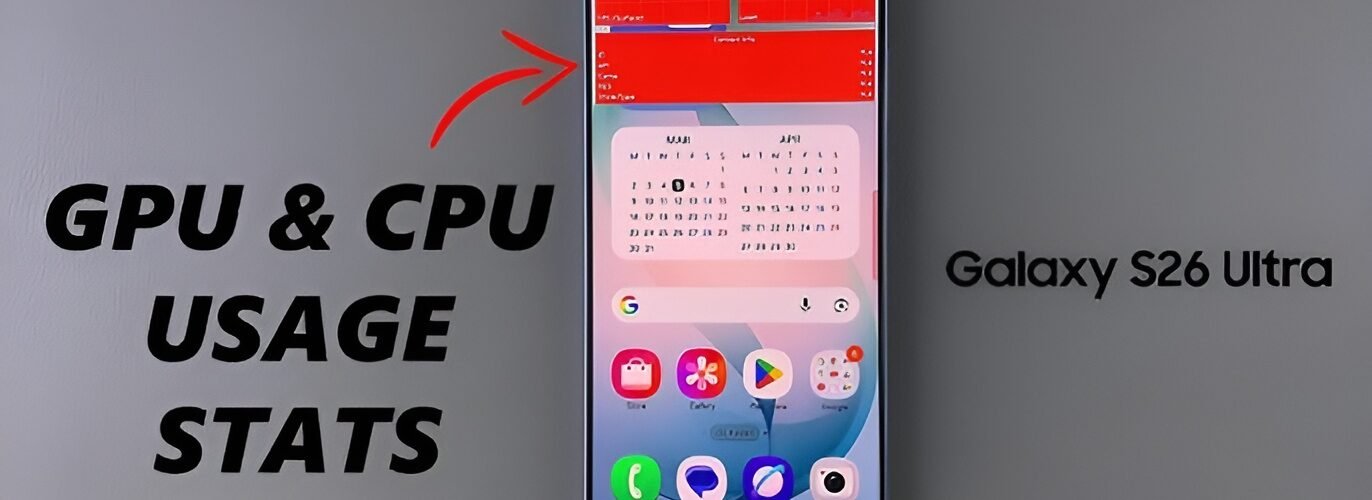
Quick answer: Since Android 8.0, regular apps can no longer read how much CPU your phone or other apps are using, so most “CPU monitor” apps can’t show real usage anymore. What still works: Samsung’s Game Booster System Monitor overlay (CPU, GPU, RAM and FPS while gaming), the top command over ADB from a computer, and Settings → Battery to spot apps that are working your processor hard. For GPU, Developer options only gives you rendering-time bars, not a usage percentage.
What people keep asking about CPU usage on Android
“Why does every CPU app show nothing on my newer phone?” This is the most common complaint. An owner on the Android Central forums noticed that current monitoring apps stopped showing usage after Oreo. The developer of the open-source AnotherMonitor app explains why: Android 7.0 restricted access to the proc file system, and Android 8.0 restricted it further, so apps can’t see total or per-process CPU usage at all. Rooting doesn’t change that for the app, according to the same developer.
“Can I just install an old version of a CPU app?” The same Android Central poster tried an old CPU-Z build and got numbers, but said they didn’t match how the phone was behaving. Skip this route. Old APKs from random uploads are a security risk, and the readings aren’t trustworthy.
“How do I find the app that’s eating my CPU?” On the GrapheneOS forum, a user tracked down Telegram running at around 150% CPU by connecting the phone to a computer and running top through ADB. They used a USB cable because wireless ADB kept failing for them. This works on any Android phone, not just GrapheneOS.
Why Android hides CPU usage now
Android locked down the system files that monitoring apps used to read. After Android 8.0, an app can’t see what other apps are doing on the processor. The side effect is that the old “install an app, see your CPU %” approach mostly doesn’t work on modern phones, even if an app’s store listing still promises it.
How to see CPU and GPU usage on a Samsung Galaxy
Samsung phones have the easiest option, because the tool is built in and allowed to see system data. According to SamMobile, Game Booster’s System Monitor shows FPS, CPU, GPU and RAM usage in a floating window while you play:
- Open any game.
- Open Game Booster: with navigation buttons, swipe up from the bottom and tap the Game Booster icon; with gestures, swipe right on the small handle on the left edge.
- Tap System Monitor. A floating stats window appears, and you can drag it out of the way.
- To turn it off, open Game Booster again and tap System Monitor once more.
As of May 2026, SamMobile says it should be on most Galaxy phones launched in 2024 or later running One UI 8 and above, but may not be on every model. It only appears inside games, so it’s best for checking gaming performance and heat-related slowdowns.
How to check CPU usage on any Android phone with ADB
If you have a computer, ADB gives you the real numbers on any phone, without root.
- Turn on Developer options: open Settings → About phone and tap Build number seven times until you see “You are now a developer!” On Samsung it’s Settings → About phone → Software information → Build number. (Android Developers)
- In Developer options, turn on USB debugging.
- Install Google’s Android SDK Platform-Tools on your computer and connect the phone with a USB cable. Accept the debugging prompt on the phone.
- In a terminal on the computer, run
adb shell top. Apps are listed by CPU use, with the heaviest at the top. - Press Ctrl + C to stop, then turn USB debugging off again when you’re done.
A reading above 100% isn’t a mistake. On multi-core phones, one app can use more than one core at once, which is how the GrapheneOS user saw Telegram at about 150%.
The no-computer way: battery usage
Go to Settings → Battery and open battery usage. It doesn’t show CPU percentages, but an app that keeps the processor busy almost always shows up near the top of this list. If something you barely opened is draining a big share, that’s your suspect. Force stop it, update it, or uninstall it and see if the heat and lag go away.
Can you see GPU usage on Android?
Not as a simple percentage on most phones. Samsung’s System Monitor is the main exception. Everywhere else, the built-in tool is Profile GPU rendering (called Profile HWUI rendering on some versions), which shows how long each frame takes to draw:
- Open Settings → Developer options.
- In the Monitoring section, tap Profile GPU rendering (or Profile HWUI rendering).
- Choose On screen as bars, then open the app you want to check.
Each bar is one frame. The horizontal green line marks 16.67 ms, the budget for 60 fps, so bars that shoot above it are frames that can make scrolling or animation stutter (Android Developers). Google notes it doesn’t work for apps built with the NDK, so it can miss some games. For those, watch FPS in Samsung’s overlay or the game’s own settings.
Which method should you use?
| Method | Shows | Works on | Needs a computer? |
|---|---|---|---|
| Game Booster System Monitor | CPU, GPU, RAM, FPS | Many recent Samsung Galaxy phones, in games | No |
adb shell top | CPU per app | Any Android phone | Yes |
| Settings → Battery | Which apps drain power | Any Android phone | No |
| Profile GPU rendering | Frame render time | Any Android phone (not NDK apps) | No |
| Third-party CPU apps | Little or no usage data on Android 8+ | Limited | No |
If your phone is overheating or lagging and you’re not on a Samsung, start with the battery list. If that doesn’t point to a culprit, the ADB method will. And if your phone is freezing outright, our guide to fixing “process system isn’t responding” covers the next steps, up to resetting an Android tablet as a last resort.
FAQ
Is there still a “Show CPU usage” option in Developer options?
Not on current Android. Google’s Developer options documentation lists only Profile GPU rendering in the Monitoring section, with no CPU overlay.
Does rooting let CPU monitor apps work again?
Not reliably. The AnotherMonitor developer says running their app on a rooted device makes no difference to what it can read.
Why does ADB show more than 100% CPU for one app?
The number adds up usage across cores, so an app using one and a half cores shows about 150%.
Is high CPU usage bad for my phone?
Short bursts during games or video exports are normal. Constant high usage from an app you aren’t using drains the battery and heats the phone, so that app is worth stopping or removing.
Sources
- Android Developers: Configure on-device developer options
- Android Developers: Profile GPU rendering
- SamMobile: Monitor game FPS and system stats on Galaxy phones
- AnotherMonitor project notes on Android 7 and 8 restrictions
- Android Central forums: CPU usage on Android 8.0 and newer
- GrapheneOS forum: occasional huge CPU usage