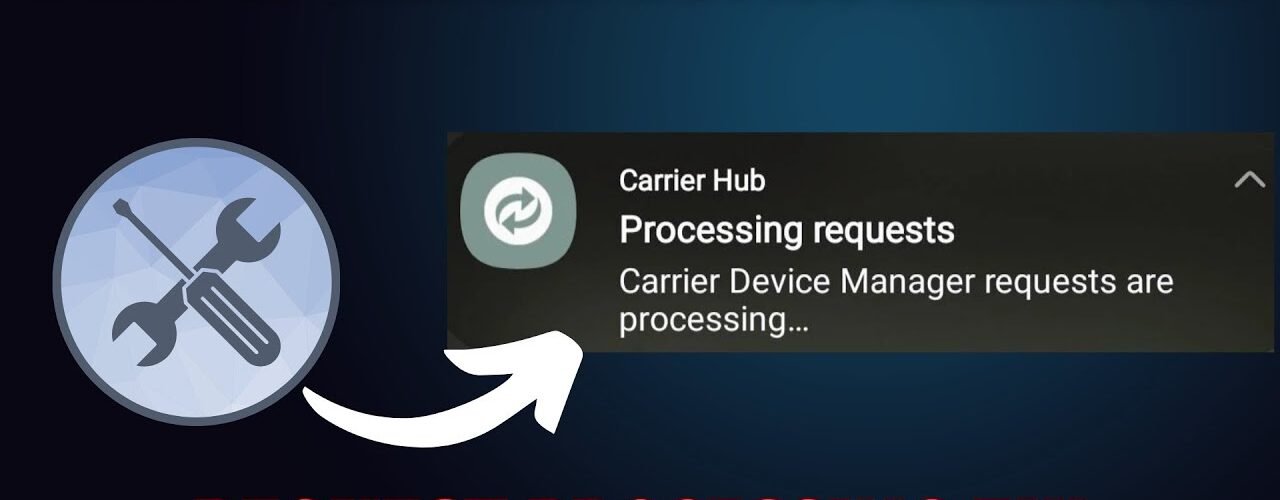
I started noticing this weird notification out of nowhere:
“Carrier Device Manager requests are processing”
At first, I ignored it. But then it kept coming back… sometimes after restart, sometimes randomly — and occasionally my phone even slowed down.
If you’re seeing the same thing, here’s what’s actually going on and how to fix it.
What This Notification Actually Means
This message looks like an error, but it usually isn’t.
It simply means your phone is talking to your mobile network in the background — updating settings, syncing, or activating features.
In most cases:
- It appears for a few seconds
- Then disappears on its own
👉 So if it shows once and goes away, you can ignore it.
When It Becomes a Problem
The issue starts when it doesn’t go away.
From what I experienced (and what many users notice), it can:
- Keep showing again and again
- Slow down the phone
- Drain battery faster
- Mess with network (calls/data issues)
This usually means the process is stuck in a loop instead of finishing normally.
Why This Happens (Real Reasons)
After testing a few things, these are the most common causes:
1. After a System or Carrier Update
Sometimes it starts right after:
- Android update
- Carrier update
- SIM changes
👉 The system tries to reconfigure network settings
2. SIM or Network Changes
- New SIM card
- Switching networks
- Poor signal
👉 Triggers background syncing
3. Bug in Carrier Hub App
This is the main reason.
The system app (often called Carrier Hub) can glitch and keep running endlessly.
4. Conflicting Carrier Apps
Some phones come with:
- Carrier Hub
- App Manager
- App Selector
These can conflict and keep triggering the same process.
Fix 1: Restart Your Phone (Start Here)
This sounds basic, but it works more often than you think.
- Hold Power button
- Restart device
👉 This stops the stuck process immediately
Fix 2: Clear Carrier Hub Cache
This is what fixed it for me.
Steps:
- Go to Settings → Apps
- Tap the 3 dots → Show system apps
- Find Carrier Hub (or Carrier Device Manager)
- Open it → Storage
- Tap Clear Cache
👉 This removes glitchy data causing the loop
Fix 3: Force Stop the App
If it keeps coming back:
- Open Carrier Hub app settings
- Tap Force Stop
👉 Stops background activity instantly
Fix 4: Uninstall Updates (Important Fix)
This one works surprisingly well.
Steps:
- Go to Play Store
- Search Carrier Hub
- Tap Uninstall updates
👉 This rolls back buggy updates
Some users even noticed their network issues disappeared after this.
Fix 5: Disable Notifications (If It’s Just Annoying)
If everything works fine but notification is annoying:
- Settings → Notifications
- Find Carrier Hub
- Turn off notifications
👉 Quick fix without touching system
Fix 6: Reset Network Settings
If you’re facing signal issues too:
- Go to Settings → System
- Reset → Network settings
👉 This refreshes carrier connection
Fix 7: Last Option – Remove Carrier Apps (Advanced)
Some devices install extra carrier apps that cause this.
If nothing works:
- Remove unnecessary carrier apps
- Restart phone
👉 Only do this if you know what you’re doing
Final Thoughts
This message looks scary, but in reality:
- It’s just your phone syncing with your carrier
- Not a virus or hack
- Usually temporary
But if it keeps showing, it’s almost always a small app glitch, not a serious issue.
Start with:
- Restart
- Clear cache
- Uninstall updates
That’s what fixes it in most cases.