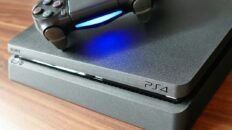
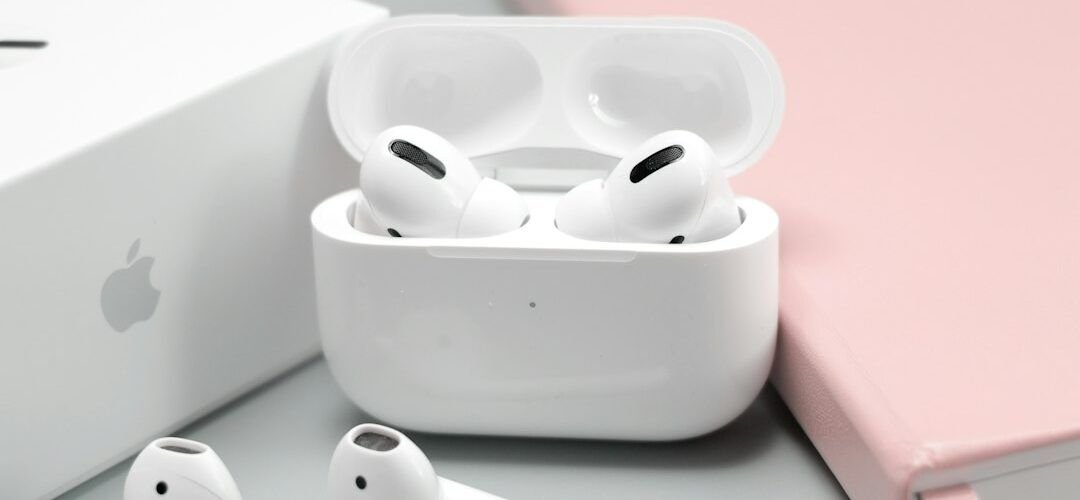
AirPods cannot connect directly to the PS5 as a normal Bluetooth audio accessory. You need another device to carry the sound, such as a PS5-compatible USB Bluetooth audio transmitter or a television with Bluetooth headphone output. Whether the AirPods microphone works is a separate question, and game-audio adapters often have limitations.
The PS5 has wireless accessories, but that does not mean its Bluetooth menu accepts every headset. Sony’s PS5 FAQ states that third-party headsets using a Bluetooth connection are not supported. Apple’s AirPods pairing instructions do not change the PS5’s audio compatibility.
Choose a connection based on how you play
- For game sound while playing on your usual TV: check whether the TV can send its HDMI audio to Bluetooth headphones.
- For console audio without relying on the TV: investigate a USB audio transmitter explicitly listed as PS5-compatible.
- For regular party chat or competitive play: a supported headset with verified microphone support is usually easier to assess.
- For occasional use with equipment you already own: test sound, delay and voice chat separately before buying anything else.
A device described simply as a Bluetooth dongle is not enough information. A generic PC Bluetooth adapter can depend on computer drivers. An audio transmitter intended for a console presents a different connection path. Read its manufacturer’s compatibility instructions for both PS5 and your AirPods model.
Method 1: a compatible USB Bluetooth audio transmitter
This method relies on the transmitter doing the pairing. You do not pair the AirPods in the PS5’s Bluetooth Accessories screen. Instructions vary by transmitter, so its manual takes priority over generic button sequences.
- Confirm that the transmitter supports PS5 audio output and the AirPods model you own. Check whether it supports a microphone, only playback, or a separate chat accessory.
- Connect the transmitter to a suitable PS5 USB port according to its instructions. A USB-A or USB-C connector describes the physical plug, not guaranteed console support.
- Put the transmitter into its Bluetooth pairing mode.
- Put the AirPods into pairing mode using the procedure for their charging case or headphones.
- Wait for the transmitter’s connection indication, then open PS5 Settings → Sound → Audio Output.
- Choose the compatible USB output device if it has not been selected automatically. Test a quiet game scene before adjusting the volume.
If the transmitter never appears as an output device, solve that step first. Repeatedly resetting the AirPods will not make an unsupported USB adapter become a PS5 audio device. Conversely, an adapter can appear on the console while still not having paired successfully with the earbuds.
How to put your AirPods into pairing mode
Apple uses different controls across models. For AirPods 1, 2 or 3 and AirPods Pro 1 or 2, place the earbuds in the case, open the lid and hold the rear setup button until the light flashes white. Apple’s guide describes about five seconds.
For AirPods 4 and AirPods Pro 3, Apple describes double-tapping the front of the open case with the earbuds inside to make the status light flash white. For AirPods Max, hold the listening-mode button until the light flashes white. For any other model, check Apple’s current guide for that exact model rather than assuming the case has a rear button.
While testing, stop another nearby device from automatically reconnecting to the earbuds. Temporarily disconnecting them from your phone can make it clearer which device has the audio connection. There is usually no reason to erase every saved pairing as your first troubleshooting step.
Method 2: send the TV’s sound to AirPods
If your TV supports Bluetooth headphone output, it may be able to send the PS5’s HDMI sound to the AirPods. Look for the television’s audio-output or Bluetooth-audio menu and follow its own pairing instructions. Merely having Bluetooth for a remote control does not establish headphone support.
- Keep the PS5 connected to the television through HDMI.
- Open the TV’s supported Bluetooth headphone pairing menu.
- Put the AirPods into pairing mode and select them on the TV.
- Check that the PS5 is outputting sound to the HDMI device.
- Test game sound and the TV’s volume controls.
This arrangement handles playback through the TV. Do not expect it to send the AirPods microphone back through HDMI for PS5 party chat. If you need to talk, configure and test a separate supported microphone on the console.
Check party-chat input separately
On PS5, output and input are separate settings. Receiving game audio proves only that the output path works. Open the control center’s microphone settings and inspect the available input devices. Speak and check the microphone-level response before starting a party.
You may choose the DualSense microphone if that suits your setup. Check its mute button, placement and background noise, then ask a friend whether speech is clear. A transmitter that advertises voice-chat support may still use an included microphone rather than the microphone inside the AirPods; read what is actually included.
The same distinction explains a common complaint: sound works perfectly, but nobody can hear you. Diagnose the selected microphone, mute state and chat settings before treating the entire connection as broken.
Will the sound be delayed?
Delay depends on the complete route through the console, TV or transmitter and earbuds. A successful pairing is not a promise of suitable timing for every game. Test a menu click, a character action or a rhythm-game input and compare the sound with the visible event.
For competitive games, evaluate whether the timing distracts you before committing to the setup. Do not assume a low-latency codec printed on an adapter’s box will be used by the AirPods; both ends must support the relevant mode. Check the transmitter manufacturer’s AirPods-specific guidance instead of relying on a headline claim.
No sound after connecting? Check this order
- Is the transmitter or TV actually paired with the AirPods? Check its connection indicator.
- Is the PS5 sending audio to the intended USB or HDMI output?
- Are the headphones and the selected output volume audible and unmuted?
- Has a nearby phone taken over the AirPods connection?
- Does a different supported headset work on the same PS5 output?
- If sound works but chat does not, inspect microphone input instead of repeatedly changing output.
Avoid buying adapters solely from a product title that mentions Bluetooth. The useful evidence is the manufacturer’s supported-console list, AirPods compatibility information and the exact playback and microphone features.
Frequently asked questions
Can AirPods pair directly in the PS5 Bluetooth menu?
No. Normal Bluetooth audio headsets are not supported directly by PS5. Use a compatible external audio route.
Will a PS5 Bluetooth transmitter use the AirPods microphone?
Not necessarily. Check the transmitter’s specific microphone support. Some routes provide playback only or need a separate microphone.
Can I use the TV’s Bluetooth instead?
Yes, if that TV supports Bluetooth headphone output for its HDMI audio. Its manual determines the pairing process, and microphone return to PS5 is a separate issue.
Why do AirPods have sound but no party-chat voice?
Audio output and microphone input are separate. Select and test a supported PS5 microphone; successful headphone playback does not prove the AirPods mic is available.
Photo: Daniel Romero / Unsplash.