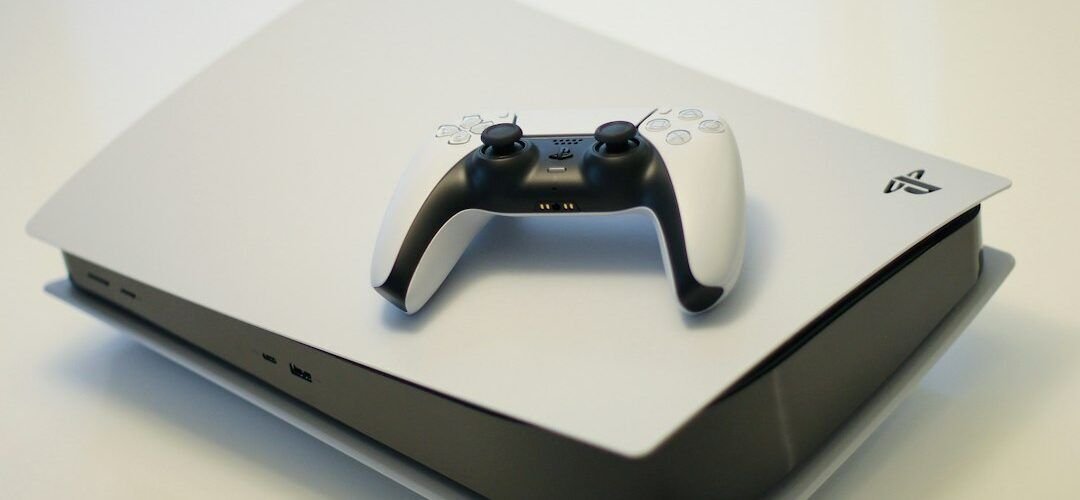
To connect a PS5 controller to your PS5 for the first time, turn on the console, attach the DualSense with a USB cable that supports data, and press the PS button. For Bluetooth pairing with a supported computer or phone, turn the controller off, disconnect USB, then hold Create and PS until the light bar blinks.
Choose the instructions for the device you are connecting to. First-time console pairing, adding a second controller and connecting to a computer are different tasks. A cable can also charge a controller without being suitable for pairing, so an orange charging light is not proof that the console has recognized it.
Pair your first controller with a PS5
- Turn on your PS5. If the controller is not paired, use the console’s power button.
- Connect the controller to the console using the included USB cable or another compatible data cable.
- Press the PS button on the controller.
- Wait for the light bar to blink and the player indicator to illuminate, then choose the relevant user if prompted.
- After successful pairing, disconnect the cable to use the controller wirelessly.
Use a cable labeled for charging and data, or charge and sync. A charge-only cable can make troubleshooting confusing because it supplies power while leaving the pairing step unsuccessful. Check the connector and try a different USB port before assuming the controller has failed.
If you have also used the controller on another device, switching its connection or reconnecting by USB may be necessary. Keep the destination device in mind: the PS button can reconnect to a previously used device rather than starting a brand-new Bluetooth pairing.
Add another controller without a USB cable
You need an already paired controller to navigate the console for this method. If your only controller is unpaired, use the USB procedure above first.
- Using the working controller, open Settings → Accessories → General → Bluetooth Accessories.
- Disconnect any USB cable from the second controller. Make sure its player indicator is off.
- On the second controller, hold Create and PS together until the light bar blinks. Create is the small button to the left of the touchpad.
- Select the second controller in the PS5’s list using the working controller.
- Wait for its player indicator to light up and select its user when prompted.
Sony supports up to four controllers being used at the same time. Four connected players is a separate idea from a controller remembering several paired devices; do not confuse those two limits.
Connect to a Windows PC
For a wired connection, plug a compatible USB cable into the controller’s USB-C port and the computer. For Bluetooth, open Windows Bluetooth settings, add a Bluetooth device, and put the controller into pairing mode with Create and PS.
Select the controller entry that appears in the device list. The displayed name can vary, so identify it by when it appears during pairing rather than connecting an unrelated accessory with a similar name.
Being paired to Windows and working in a particular game are separate checks. Open the game’s controller settings and check its supported input devices. On Steam, inspect the game’s Controller Support information. Avoid stacking several input tools or mappings while diagnosing a connection, because that makes it harder to tell which layer is receiving the button presses.
Sony lists Windows 10 64-bit and Windows 11 as supported systems in its DualSense device guide. Advanced features vary by game and connection. Sony’s current guidance says PC haptic feedback requires a USB connection and game support; do not assume every Bluetooth game provides the same effects as a PS5 release.
Connect to a Mac, iPhone, iPad or Android device
Sony’s published compatibility list includes macOS Big Sur 11.3 or later, iOS and iPadOS 14.5 or later, and Android 12 or later. Meeting the operating-system requirement does not establish that every app supports a controller.
- Disconnect the USB cable and turn the controller off.
- Open the device’s Bluetooth settings.
- Hold Create and PS on the controller until its light bar blinks.
- Select the controller from the available Bluetooth devices.
- Open a game or application that supports controllers and check input.
A paired controller that does nothing inside one mobile game may indicate missing game support. Test another supported application before repeatedly deleting the Bluetooth pairing. Also check whether an on-screen control option or a controller setting must be enabled inside the game.
Feature support differs from basic button support. Sony does not list the DualSense built-in microphone and speaker as supported on Mac and mobile devices. Its guide also notes limitations for headset-jack support and advanced feedback. Use the device and game documentation to decide which features you can expect.
Switch between devices with pairing slots
Current DualSense software supports registering up to four pairings. Sony assigns the slots to PS plus Triangle, Circle, Cross and Square respectively. For a registered slot, holding the corresponding combination for about three seconds switches the connection; assigning a slot uses a different, longer hold.
Use Sony’s current multi-device instructions for the registration process and update the controller software if that feature is unavailable. Do not treat a quick tap on a face button as a pairing command. If a USB cable is attached, disconnect it before using the wireless slot procedure.
For an uncomplicated return to PS5, connect the controller to the console with a compatible USB cable and press PS. That gives you a clear recovery route even when you are unsure which wireless pairing is selected.
If the controller will not connect
- No lights or input: check charge level and cable connection first.
- It charges but does not pair: try a known data-capable cable and another USB port.
- It flashes but is not listed: confirm that the destination is searching for Bluetooth devices and that the controller is in pairing mode.
- It connects to another device: disconnect that device or select the intended registered slot.
- It pairs to the computer but not the game: check game compatibility and input settings.
- It reconnects and then drops: inspect battery state, distance and possible interference before resetting.
For charging-specific checks, see how to charge a PS5 controller. A sticky button is a different fault from pairing; the controller button-sticking guide covers that problem.
Reset only after the simple checks
Sony’s reset procedure is to turn off the PS5, disconnect the controller’s USB cable, and hold the small reset button on the back near the Sony logo for at least five seconds using a suitable pin. Reconnect to the PS5 with the official USB cable and press PS.
A reset is a controller troubleshooting step; it is not a factory reset of your console. If pairing still fails after the documented steps, use PlayStation’s repair support rather than forcing connectors, opening the controller or downloading an unofficial pairing utility.
Frequently asked questions
Which buttons put a PS5 controller in Bluetooth pairing mode?
With the controller off and USB disconnected, hold Create and PS until the light bar blinks, then select it on the supported destination device.
Can I connect my first PS5 controller without a cable?
Sony’s first-time pairing procedure uses a compatible USB cable and the PS button. Wireless pairing for an additional controller needs another controller already paired to navigate the console.
Why does the controller charge but not connect?
Check that the cable supports data, not only charging. Also test another USB port and make sure you are using the pairing method for the destination device.
Do all DualSense features work on a phone?
No. Basic connection and supported game input do not guarantee haptics, adaptive triggers, audio or microphone features. Sony lists separate limitations for each device class.
Photo: Kerde Severin / Unsplash.