
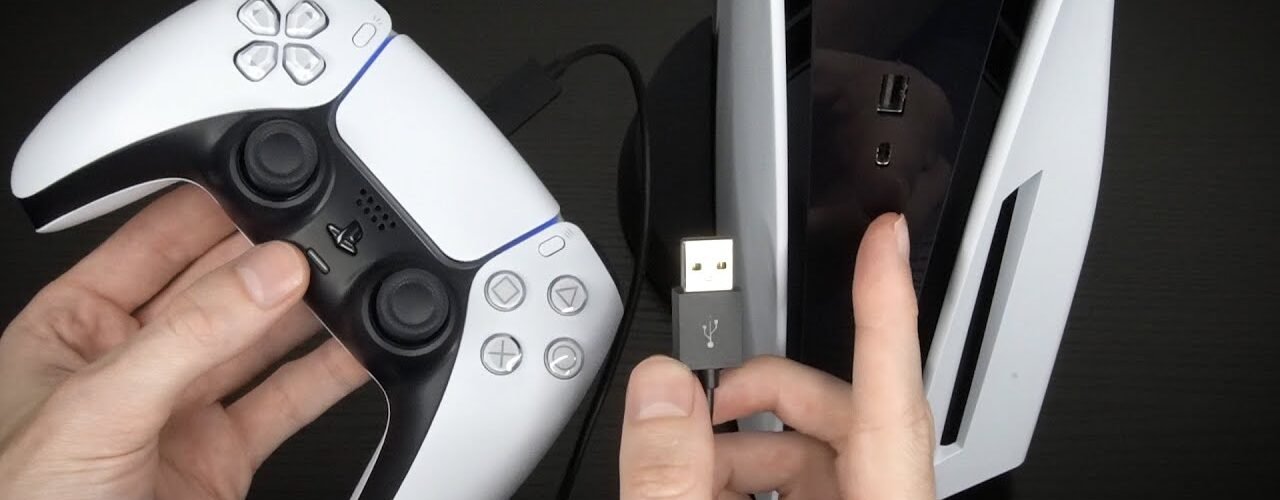
To charge a PlayStation 5 controller, plug the USB-C cable into the top of the DualSense and the other end into your PS5. The light bar slowly pulses orange while it charges and turns off when it’s full. It also charges in rest mode if you set Settings > System > Power Saving > Features Available in Rest Mode > Supply Power to USB Ports to Always or 3 Hours. No console nearby? A PC, laptop or USB wall adapter works too.
It sounds too simple to get wrong, but it’s a real thing. Unlike older controllers, the PS5’s DualSense isn’t just “plug and forget.” People use different chargers, cables and setups, and suddenly there’s confusion where there shouldn’t be.
How to charge a PS5 controller with the console
This is the obvious way, and it’s still the best one:
- Plug the USB-C end of the cable into the port on the top edge of your controller.
- Plug the other end into a USB port on your PS5.
- Watch the light bar. A slow orange pulse means it’s charging.
You can check the exact battery level in the control center under Accessories. Sony says the battery icon animates while the controller charges.
Even people who try other methods usually end up coming back to this one, because it’s the most reliable.
Charging in rest mode (the lazy smart way)
If your PS5 is in rest mode, it can still charge your controller, so you don’t have to sit there waiting.
Here’s the catch: it only works if the console is allowed to power its USB ports while resting. Per PlayStation Support:
- Go to Settings > System > Power Saving.
- Open Features Available in Rest Mode.
- Set Supply Power to USB Ports to Always or 3 Hours. Slimmer CFI-2000 consoles also offer Adaptive, which works through the console’s USB-C port.
If this is off, you’ll plug the controller in, see the light blink… and then nothing happens. That’s where a lot of the confusion comes from.
How to charge a PS5 controller without the console
You don’t need the PS5 at all. The DualSense charges from standard USB power, so any of these work:
- A USB wall adapter, like a phone charger, with a USB-C cable.
- A PC or laptop (more on that below).
- A charging dock, like Sony’s DualSense charging station.
Using a phone charger (yes, but be careful)
This is where things get messy, and where Reddit threads start getting heated.
Technically, yes, you can charge your controller with a phone charger or wall adapter. It just needs standard USB power (around 5V), and plenty of people do it without any issues.
But you’ll also see experiences like “charging with PC is really slow, phone charger faster,” and others going the opposite way: “it didn’t charge properly with some adapters.” Basically:
- Not all chargers behave the same.
- Some fast chargers don’t play nicely.
- Speeds can vary a lot.
Sony’s own advice is to use a cable that complies with USB standards, and it notes that some devices may not charge the controller at all. So it works, just don’t assume every charger acts the same.
Charging dock (the “I’m done dealing with cables” option)
At some point, people get tired of plugging and unplugging cables. With a dock, you just drop the controller in place and it starts charging. No cable hunting, no awkward angles.
Even here, people complain about small things like alignment, space and dust. It’s not perfect, just cleaner.
How to charge a PS5 controller on PC
Plug the controller into a USB port on your PC or laptop with a USB-C cable and it’ll charge. PlayStation Support confirms computers work, with the warning that some devices may not charge it.
Here’s the honest version: it’s usually slower. Some people notice it barely charges unless the computer is fully on, and if the PC goes to sleep, charging may stop completely. It’s fine in a pinch, but not ideal.
How long it takes to charge a PS5 controller
Sony lists approximately 3 hours to charge a depleted controller using the official DualSense charging station. Other power sources, and playing while it charges, can change that. See the Sony charging-station manual.
If it’s taking way longer than that, something’s off, usually the cable, the port or the power source.
Why your PS5 controller isn’t charging
This is where most of the frustration comes from:
- The cable is loose or worn out. Try another USB-C cable that also carries data.
- The port has dust in it (it happens more than you think).
- Rest mode isn’t supplying power. Check the setting above.
- The charger isn’t compatible. Try the PS5 or a different adapter.
None of these is a big problem on its own, but together they make it feel like the controller just refuses to charge.
So what’s the “right” way?
Honestly, it’s simpler than it feels:
- Use the PS5 and a USB cable when you can.
- Use rest mode for convenience.
- Use other chargers carefully, because they’re not all equal.
There’s no secret trick, just a few small details that make a big difference. Once you know what works for your setup, it becomes automatic. Until then, you’ll probably stare at that blinking orange light wondering if it’s actually charging or just pretending.
FAQ
How do you know when a PS5 controller is fully charged?
The orange light bar pulse stops and the light turns off. You can also check the battery icon under Accessories in the control center.
Can you charge a PS5 controller while playing?
Yes. Leave it plugged into the console with the cable and keep playing. Sony notes that using it while charging can make charging take longer.
Can I charge a PS5 controller with a phone charger?
Usually, yes. A standard 5V USB wall adapter and a good USB-C cable work for most people, though some adapters charge slowly or not at all.
Does a PS5 controller charge when the PS5 is off?
Not when it’s fully powered off. It charges in rest mode only if Supply Power to USB Ports is set to Always or 3 Hours.