
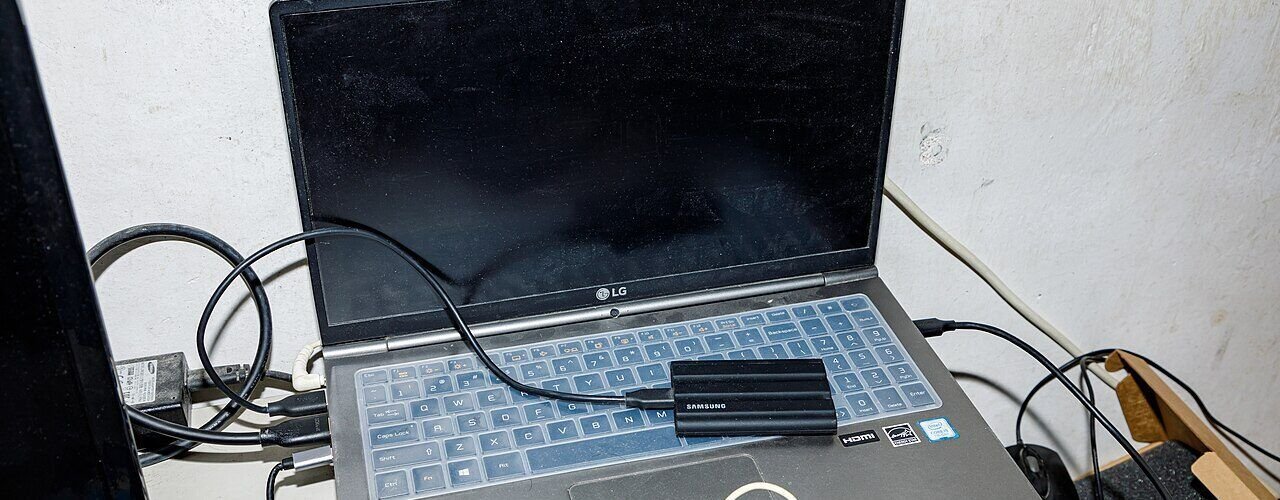
PS5 extended storage is any USB drive you format through Settings > Storage > USB Extended Storage. Sony requires SuperSpeed USB 5 Gbps or faster and a capacity between 250 GB and 8 TB. You can play PS4 games straight from it, but PS5 games can only be parked there; the console has to copy them back to internal storage before you can play. If you want more room for PS5 games you can actually launch, you need an internal M.2 SSD instead.
What PS5 owners keep asking about external drives
“If I buy an external SSD, can I play PS5 games from it?”
No, and a fast SSD doesn’t change that. A Push Square forum thread asked exactly this, and the replies agreed: PS4 games run from USB, PS5 games don’t, so the choice is copying them back or fitting an internal drive. Sony’s own extended storage page says the same as of October 2026.
“Hard drive or external SSD?”
Both work as extended storage. In a Push Square discussion of external SSD downsides, opinion split: one member called an SSD for PS4 games “a waste of money” over saved seconds, while another pointed to games such as Final Fantasy VII Remake and Monster Hunter: World loading far faster. The practical takeaway: a big, cheap hard drive is fine for storage, and an SSD only pays off if you play a lot of PS4 games from it.
“Should I just upgrade the internal storage instead?”
If PS5 games are what’s filling your console, yes. In a thread about upgrading the SSD or buying an external drive, several owners who added an M.2 SSD said they hadn’t run short of space since, and one noted the install only took a screwdriver. Others kept a large USB hard drive purely as a holding area for games they weren’t playing.
“Do PS4 games that got PS5 upgrades still work from USB?”
It depends which version you have. A Push Square thread on upgraded PS4 games explains that a true PS5 version counts as a PS5 game, so it can’t run from USB. A PS4 game that simply runs better on PS5 still gets that boost from external storage, just with slower loading. That matches Sony’s rule: the PS4 or PS5 version decides it, not the drive.
What PS5 extended storage can and can’t do
Here’s the short version, based on Sony’s USB extended storage and M.2 SSD support pages:
| USB extended storage | Internal M.2 SSD | |
|---|---|---|
| Play PS5 games from it | No (store only) | Yes |
| Play PS4 games from it | Yes | Yes |
| Capacity Sony supports | 250 GB to 8 TB | 250 GB to 8 TB |
| Connection | SuperSpeed USB 5 Gbps or faster | PCIe Gen4 x4 M.2 NVMe (Key M) |
| Installation | Plug in and format | Open the console, needs a heatsink |
| Drives in use at once | One (you can connect several) | One slot |
A few other points from Sony are easy to miss. Apps can live on the drive too, not just games. A drive you already used as extended storage on a PS4, or on another PS5, plugs straight in without reformatting. And don’t use a USB hub, because Sony doesn’t support drives connected that way.
Which USB drives work with a PS5?
Any USB drive that runs at 5 Gbps or faster and holds between 250 GB and 8 TB meets Sony’s requirements, though Sony also says not every device is guaranteed to work. On the box, look for one of these:
- 5 Gbps: USB 3.0, USB 3.1 Gen 1 or USB 3.2 Gen 1
- 10 Gbps: USB 3.1 Gen 2, USB 3.2 Gen 2, or USB 3.2 Gen 1×2 (which the PS5 runs as a single 5 Gbps lane)
- 20 Gbps: USB 3.2 Gen 2×2 (which the PS5 runs as a single 10 Gbps lane)
So a 20 Gbps drive gains you nothing over a 10 Gbps one on a PS5. For pure storage, a portable hard drive is the cheapest gigabyte you can buy. A Push Square member pointed out that portable models are powered by the console itself, so there’s no extra power brick to deal with.
How to set up PS5 extended storage
Formatting wipes the drive completely and Sony says erased data can’t be recovered, so copy off anything you want to keep first.
- Plug the drive into one of the PS5’s SuperSpeed USB 10 Gbps ports (Type-A or Type-C), directly, not through a hub.
- Go to Settings > Storage.
- Select USB Extended Storage > Format as USB Extended Storage.
- If you have more than one drive connected, choose Select Another USB Drive to pick the right one.
- Leave the console on and the drive plugged in until formatting finishes. Sony warns that interrupting it can corrupt data or damage hardware.
Want PS4 games to install there automatically? Sony lets you make the USB drive the installation location for PS4 games; look under Settings > Storage > Installation Location.
Moving PS5 games to the drive and back
Moving a PS5 game out frees console space without forcing you to download it again later. Copying it back from USB is usually quicker than a fresh download, which is the whole point of the feature.
- Open your Game Library and highlight the game.
- Press the Options button and choose Move Games and Apps.
- If you also have an M.2 SSD installed, check the Movable to USB Extended Storage tab.
- Tick the games and select Move.
To play one again, go to Game Library > Installed, highlight the game, press Options and select Copy. It goes back to console storage and launches from there. If space runs out while you’re doing this, our guide on deleting games to free up PS5 storage covers the fastest way to clear room.
To delete something on the USB drive itself, go to Settings > Storage > USB Extended Storage > Games and Apps and use the Delete Content tab.
Removing the drive safely
Don’t just pull the cable. Go to Settings > Storage > USB Extended Storage > Safely Remove from PS5, then unplug it. Sony’s other safe option is to wait until the power indicator is completely off; note that rest mode isn’t “off”, which our rest mode explainer goes into.
Want the drive back for your PC? Go to Settings > Storage > USB Extended Storage, choose … (More) and pick Format as exFAT. That erases it too.
PS5 not recognizing the drive? (error CE-100006-7)
Error CE-100006-7 means the console can’t see the external drive. Sony’s fixes, in the order worth trying:
- Unplug the drive and plug it back in. Remove any hub and connect it straight to the console.
- If it’s a new drive, format it as extended storage first (steps above).
- Update the PS5 system software.
- If a big batch transfer fails, move games one at a time.
- Try a different drive. If a second one works, the first drive is the problem.
Frequently asked questions
Can I use my old PS4 external hard drive on PS5?
Yes. Sony says a drive already formatted as extended storage on a PS4 works on PS5 without reformatting, and your PS4 games on it can be played directly.
What is the maximum PS5 extended storage size?
8 TB. Sony supports USB extended storage drives from 250 GB up to 8 TB, the same range it gives for M.2 SSDs.
Can I connect two external drives to a PS5?
You can plug in more than one, but the PS5 uses only one USB extended storage drive at a time. Switch between them from Settings > Storage.
Does a USB flash drive work as PS5 extended storage?
Only if it meets the same rules as any other drive: at least 250 GB and SuperSpeed USB 5 Gbps or faster. Smaller sticks can’t be formatted as extended storage.
Sources
- PlayStation Support: USB extended storage on PS5 consoles
- PlayStation Support: How to add an M.2 SSD to a PS5 console
- PlayStation Support: PS5 error CE-100006-7
- PCWorld: Playing PS4 games from an external USB drive on PS5
- Push Square forum: PS5, playing games from an external HD
- Push Square forum: External SSD recommendations and downsides
Featured image: Dinkun Chen / Wikimedia Commons